For an overview of all of the membership management options that are available in Modular Merchant, be sure to start with the Introduction to Creating Members-Only Websites.
Modular Merchant makes it simple to set up a "members-only" area of your store where your customers can log in to access content that they have purchased. Modular Merchant's Subscription Product system (also called recurring billing or a continuity program) allows you to add "member-only" content to products. When a customer purchases one of these products, they will automatically gain access to its content. Anyone who has not purchased that product won't have access to its content!
The shopping cart software offers two different ways to provide members-only content to your customers: You can either use the store's built-in members area, or add a membership area to your own website. This article is a tutorial on doing the former: using the store's built-in Customer Account area to provide members-only content.
Creating a product with members-only content
In this example, I run an online store that sells images, videos and other educational materials about US Presidents. I will be adding a new product about Abraham Lincoln. Any customer that purchases this product will gain access to a weekly series of videos about our 16th President.
The first step is to create my new product. In the store's administration area, go to [Products > Add a Product]. This will open the Product Editor.
(For my example, I will create a new product named "Abraham Lincoln Instructional Series".)
The next step is to add Subscription Rules to the product. When using this method, it is necessary for the product to have a subscription rule. Other methods are available that do not have this requirement.
Subscription rules are located in the Subscription Rules section of the Product Editor. Below is an example of what the Subscription Rules section of the Product Editor looks like.
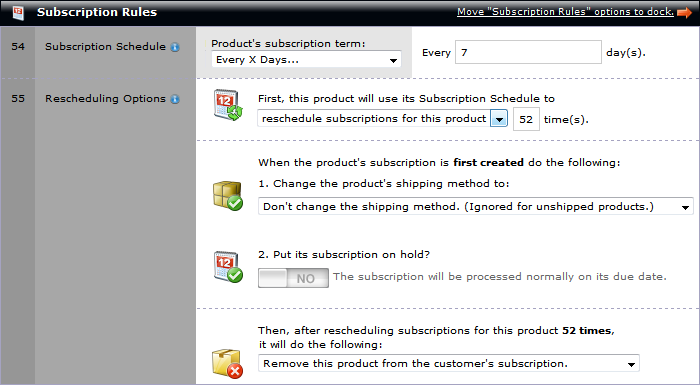
Adding Subscription Rules to a product in MMv4.
Adding members-only content to the product
The next step is to add the "membership" content, which will only be made available to customers who have purchased this product.
Below is an example of what the Subscription Rules section of the Product Editor looks like. The membership content may contain links, videos and other rich media content. A WYSIWYG editor is available to edit the content, so it isn't necessary to enter the HTML source code.
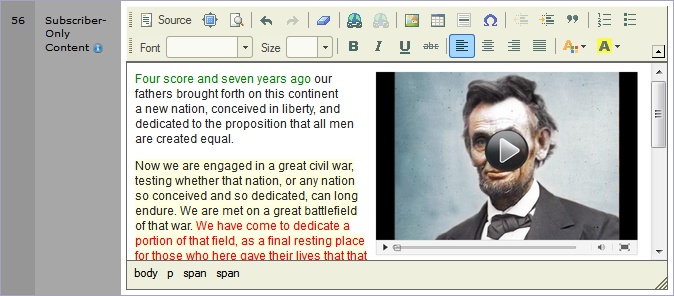 Only customers who have an active subscription to this product will be able to
view this content in the store's built-in Customer Account Area.
Only customers who have an active subscription to this product will be able to
view this content in the store's built-in Customer Account Area.
After adding the membership content to the product, save your changes. The members-only content will now be available to customers who purchase this product. In the next section, we'll review how the customer accesses the product's membership content.
Viewing a product's members-only content in the storefront
When a customer purchases a product that has both Subscription Rules and Membership Content, something special happens. The Modular Merchant shopping cart software includes a Customer Account Area that each customer can log in to and review their order history and edit their contact information. The Customer Account Area also includes a page that will contain the Membership content of any eligible product they have purchased.
For example, a customer purchases the Abraham Lincoln Instructional Series in my online store. After completing the order, the customer can then log in to their Customer Account area in my store. (All pre-made Modular Merchant store template packages include a link to the Customer Account Area on each page.) Within the Customer Account area, there is a link titled News. Clicking on that link will load a page that displays the membership content associated with any eligible product they've purchased.
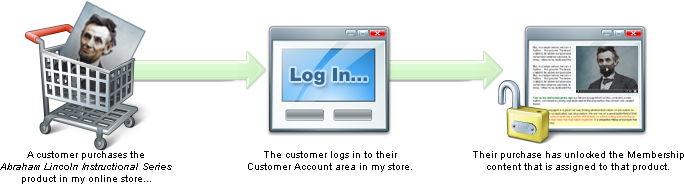
In the example above, the product's continuity rules were configured so that it will invoice the customer weekly for fifty-two weeks. After the fifty-two weeks, the customer's subscription to it will automatically end, and their access to the product's membership content will end. This entire system is built-in to the shopping cart. To take advantage of this system, just follow the steps above; no programming is required!
This tutorial covered just one way that exclusive content can be provided to customers that purchase a product. It is also possible to create entire members-only websites that are accessible only to customers that have either purchased, or have a subscription to, certain products. As soon as you're comfortable with the basic steps above, read the next tutorials in this series and take this concept to the next level.
|


