This tutorial provides instructions on how to use SFTP to connect to a website in order to upload or download files. All SILVER and higher Modular Merchant account plans provide options for adding SFTP connectivity to the store's hosting account.
This tutorial is written for version 4 of the Modular Merchant shopping cart software (MMv4). If using a previous version of the software, the names and locations of items located in the store's Administration Area that are referenced below may differ slightly.
Prerequisites
This tutorial assumes that the user already has the following:
-
Basic understanding of uploading and downloading files using FTP.
-
An FTP/SFTP application installed on their computer. (This tutorial uses Filezilla.)
sftp software
key concept: sftp
How does SFTP differ from FTP?
SFTP is nearly identical to regular FTP, except that it connects to the server on a different port, and it encrypts the user name, password and transmitted data. Other than that, they're the same.
Why SFTP?
As per PCI Compliance requirements, SFTP must be used instead of FTP when connecting to the user's hosting account in order to upload or download files.
Locating your hosting account's SFTP information
An account's sftp connection information can be found in the store's administration area at [Hosting > Connection Information].
Configuring an SFTP connection in an FTP program (Filezilla)
The instructions below are based on Filezilla version 3.5.0. The instructions for other versions of Filezilla may differ slightly.
-
Open Filezilla
-
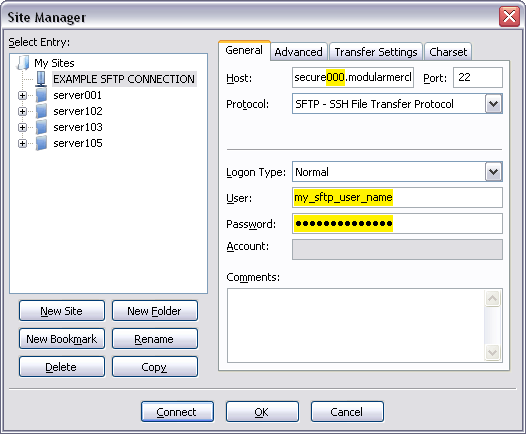
In the application, create a new site profile by going to [File > Site Manager]. A Site Manager popup window will open. (See sample image below.)
-
In the Site Manager popup window, click the New Site button.
-
In the left-column, enter a name for the new site.
-
In the right-column, select the General tab.
-
In the Host field, enter the Host Address listed in the store's Connection Information page.
-
In the Port field, enter 22.
-
From the Protocol menu, select SFTP - SSH File Transfer Protocol.
-
From the Logon Type menu, select Normal.
-
In the User field, enter the SFTP Login listed in the store's Connection Information page.
-
In the Password field, enter the SFTP Password listed in the store's Connection Information page.
-
Click the OK button to save the site profile.
The site should now be configured in Filezilla, and ready for use. Click the Connect button in the Site Manager window to connect to the website and start uploading and downloading files.
security measure: brute force lockout
If a user's attempt to log in via SFTP fails five times within ten minutes, then that user's IP will be locked out for ten minutes.
This is a security measure to combat brute-force attacks, in which a bot will bombard the server, attempting to log in with a variety of different user names, in an attempt to ascertain an account's login information.
Locating website files on the server
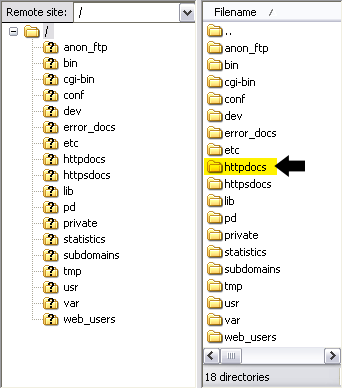
When connecting to your hosting account, a list of directories will be displayed. (See sample image below.)
Click on the httpdocs directory to open it. The httpdocs directory is where all of the website's files are located, and all content should be uploaded to that directory.
Once the user is connected to the website's httpdocs directory, they're ready to start uploading and downloading files.
u can touch this
The files associated with your Modular Merchant shopping cart software will be visible when you have logged in by SFTP. They are owned by the SFTP user account, which means it is possible to overwrite them by uploading files with the same names.
Overwriting any of the shopping cart's files (especially those that begin with the prefix "ad_") will result in degraded performance of the shopping cart software.
The exception is the following two locations, which contain the customizable images and templates. Uploading your own images and templates into the following locations is okay, and should not interfere with the software's functionality:
If your store is installed in the /httpdocs/ directory:
/httpdocs/images/
/httpdocs/template_packages/
If your store is installed in a subdirectory, such as: /httpdocs/store/
/httpdocs/store/images/
/httpdocs/store/template_packages/
troubleshooting common connectivity problems
If you're having problems making an SFTP connection to your website, try these troubleshooting steps first:
1. Host Address
Be sure that the correct Host address is being used. For PCI Compliance reasons, the host address will not be your domain name. Instead, it will be structured like this: secure000.modularmerchant.com. Replace the 000 with the Server ID specified in your store's Administration Area.
2. Password
Certain applications will sometimes append an extra blank character to the end of a password when it has been copied off a website. Instead of copying and pasting the password into the application's password field, try typing it in manually instead.
|