|
my subscriptions are just sitting there!
None of our subscription orders were processed yesterday. What would prevent them from running?
There several things that could prevent a subscription order from being processed when it becomes due. Below is the checklist that Modular Merchant's Tech Support team starts with when investigating unprocessed subscriptions. This checklist has proven to be very affective in diagnosing subscription problems, so we've posted it here for our clients to use too. Let's review each item that can prevent subscriptions from being processed:
1. Processing time(s) aren't set in the Subscription Products module's settings
The first thing to check is the Subscription Products module settings, to ensure that times have been selected to process due subscription orders. These options are located in the store's administration area at: [Modules > Subscription Products > Module Settings]. One or more hours of the day can be selected in the module options. (See example image below.)
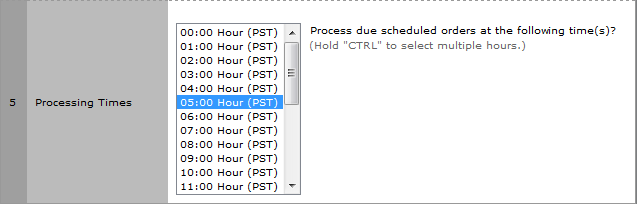
Select the time(s) for your subscriptions to be processed in the module's options.
In the sample image above, the store will attempt to process any subscriptions that are now due every day in the 5:00am hour. Note, the store won't process the subscriptions at exactly 5:00am — a random time within that hour will be selected by the system. This prevents potentially overloading the server by trying to process every store's subscriptions at the top of each hour.
warning
If the Subscription Module Settings are set to send customers an email notification if their subscription is declined, then a decline email will be sent each time the store attempts to process their subscription.
This means that, if all 24 times are selected, then the customer will receive a decline order notification email 24 times in a single day!
tip
Most Modular Merchant clients have chosen to process the store subscriptions once per day.
Why select more than one hour in the day to process subscriptions?
Selecting more than one hour is optional. Some clients schedule more than one hour in the day so that they can correct any declined orders that occur in the first hour so that those orders can be successfully processed when the system reruns again at the next selected hour.
2. The automated server task that processes subscriptions is not configured
The processing of the subscriptions is performed by an automated server task called a "cron" task. These cron tasks are automatically set up when a hosting account is installed. However, on rare occasions, it's possible that the cron job failed to be created with the website's hosting account was configured. The status of the website's cron tasks can be checked within the Plesk control panel.
locating your plesk login information
Your Plesk login information, and a link to the Plesk control panel, can be found within your store's Administration Area at: [Hosting > Connection Information].
To find the list of the cron tasks that have been set up in Plesk, follow these steps:
-
Log in to the Plesk control panel using the instructions located within your store's Administration Area at: [Hosting > Connection Information].
-
In the Plesk control panel, click on the Domains link.
-
On the Domains page, click the link for your domain name.
-
Click on the Scheduled Tasks icon in the "Additional Tools" section of the page.
-
Click the link for your Plesk username in the System User section of the page.
-
This will load the Crontab Tasks page, which lists all of the cron tasks running on your website.
If no cron tasks are running on your website, the screen will look something like this:

A crontab with no scheduled tasks.
Otherwise, the screen will list the cron tasks you have running, which will look something like this:

A crontab containing a scheduled task.
If your website doesn't have a cron task ending in "cron_manager.php", contact Modular Merchant support, and they will install all of the store's cron tasks for you ASAP.
3. An incompatible payment gateway is selected
Not all payment gateways are compatible with automated subscription billing. Typically, any gateway that requires the customer to leave your store website and complete the transaction on the payment gateway's website may be incompatible with the store's automated subscription billing.
If a subscription is assigned to an incompatible payment gateway, then a warning message will be displayed on the Search Subscriptions page in your store's Administration Area at: [Orders > Search Subscription Queue].
Any subscription set to use an incompatible payment gateway will be declined when it becomes due, and it will remain on your list of subscriptions, unprocessed.
my subscriptions are generating declined orders!
Several of my subscriptions generated declined orders when the subscription queue was processed this morning. What would cause subscription transactions to be declined?
Another potential issue that can prevent a subscription from processing is failure at the payment gateway. This may occur if the payment gateway is compatible, but when the transaction is submitted to the payment gateway, it declines the transaction, is offline, or otherwise fails to respond, with the result that the subscription transaction will not be processed.
When this happens, the shopping cart software actually is processing a subscription, but, since it is being declined, the subscription remains in the queue. It is not rescheduled, since it was not successfully processed. The system will attempt to process it again the next time the due subscriptions in the queue are billed.
When this happens, it's usually easy to track down. Declined subscriptions will be included in the Declined Orders report, located in your store's administration area at: [Reports > Declined Orders]. Mousing over the icon in the Decline Reason column will display a popup listing the specifics about the declined transaction, including the payment gateway's reason for the declining it.

Most of the orders declined in your shopping cart will be listed in the Declined Orders report.
If a subscription is declined by the payment gateway, then it will remain in your Subscription Queue, and the system will attempt to process it again the next time your subscriptions are billed. When the subscription is eventually successfully processed, it will pick up right where it left off. No orders will be dropped, and there will be no need to manually adjust the subscription's bill date.
4. The customer's credit card has expired
Subscriptions may last for months or even years. It is not uncommon for a customer's credit card to expire while the customer's subscription is still active. When a credit card assigned to a subscription expires, each time the subscription is processed, the transaction will be submitted to the payment gateway, and will be declined due to the expired credit card. This will result in a declined order, which may be viewed at [Reports > Declined Orders]. Hovering the cursor over the alert icon in the Decline Reason column will open a popup with details about the declined order. If the order was declined due to an expired credit card, the Reason for decline section near the top of the popup will include a message similar to: "Credit card declined. Submitted credit card has expired. (Credit card expiration date is 8/2012)".
tip There are a few options at [Modules > Subscription Products > Subscription Products Module Settings] to help deal with credit card expiration. For more information, refer to the Subscription Products Module Settings Knowledge Base article.
5. The subscription is missing shipping information
One common form of subscription is the "daisy chain", in which the customer purchases product A, which has rules to create a subscription to product B, which in turn has rules to create a subscription to product C, and so on. This type of subscription is also used to offer "Free Trials", and is described in detail in the Buy X, Start a Subscription to Y Knowledge Base article. If the first product in the chain does not require shipping, but a later product does require shipping, the subscription may decline when the transaction for that later product is processed. Since the initial product did not require shipping, the customer would not have entered a shipping address or selected a shipping method at checkout, and so that information would not be included in the subscription even though the later product requires it.
If a subscription is declined because of missing shipping information, the Reason for decline section near the top of the Decline Reason popup on the Declined Orders page will include a message similar to: "Shipping method required, but none selected. Shipping method required for Ship Address SID XXXX for the product SID(s): XXXX".
tip To prevent subscription transactions from being declined due to missing shipping information, if any products in a subscription daisy chain require shipping, it may be helpful to set all products in the daisy chain to require shipping.
6. Bad/Missing Customer or Products Information
Deleting a product from the Search Products page can cause any subscription that contained that product to fail. This is because deleting products in this way can result in a subscription containing products that no longer exist. If this is the case, then the customer's subscription may still be available on the Search Subscriptions page, but it will contains no products.
Making a product inactive from the Search Products page or the Product Editor may also cause any subscriptions containing that product to fail. The subscription will still have a record of the product, but when subscription transactions for an inactive product are processed, they will be declined.
deletion vs. deactivation vs. hidden
If a product is deleted, all details regarding that product will be removed from the store, and will no longer be available for reports or historical records. This may cause undesirable results in past order records, etc.
If a product needs to be permanently removed from the store, it's recommended that the product be made inactive instead of deleted. This will allow any historical orders, and other store records that refer to that product to still function and display correctly. Store administrators will also be able to add inactive products to orders in the Place an Order tool.
Subscriptions to an inactive product will result in declined orders when the subscription queue is automatically processed. If a store admin manually processes a subscription which includes an inactive product, the inactive product will not trigger a decline. If a product is included in subscriptions that will be processed automatically, but should not be displayed in the storefront, the product should not be deleted or made inactive, but instead should be set to hidden.
If the system attempts to process a subscription containing products that no longer exist in your store database, it can raise a security flag which will prevent this or other due subscriptions from being processed until the suspicious subscription is corrected.
7. Interfering custom script
custom script slot locations
In version 3, custom scripts were located in the shopping cart's txt directory. The script files are prefixed with "CSTM_". For example, the script that runs once per each order processed is located at: txt/CSTM_ckout_per_order_func.php
In MMv4, custom scripts are located in the shopping cart's cstm directory. Each script has a different file name, determined by its functionality. For example, the script that runs once before each order is processed is located at: cstm/pre_transaction.php
Accounts that are running their own scripts in the store's Custom Script Slots should review their scripts for potential problems.
Custom scripts that declare functions can slow your store to processing just one or two subscriptions per Processing Time. This is because, when the first due subscription is processed, the custom script is executed. But, when the store attempts to process the second due subscription, the custom script is executed again, which attempts to redeclare the function the custom script contains. Attempting to declare a function with the same name more than once will cause a fatal error in PHP, which causes PHP to stop processing the subscriptions.
what if my custom scripts must use functions?
The simplest way to prevent a custom script that declares functions from interfering with the processing of subscriptions is to move the functions to a separate file, and then use PHP's include_once() function in the custom script to link the file containing the functions.
For example, if my functions were located in a file called "my_functions.php" in my store's "cstm" directory, then the following code could be used to include it once:
<?php
include_once(str_replace(basename(__FILE__), '', __FILE__).'my_functions.php');
?>
If a store is experiencing problems processing subscriptions, any custom scripts should be tested by removing them off the server, then allowing the store to process the subscriptions again. If the subscriptions are then processed normally, it is a sign that something within the custom script is causing the processing failure.
What to do next...
The checklist above fixes 99% of the problems that Tech Support encounters regarding unprocessed subscriptions. If your Subscription Queue still doesn't run after reviewing each of the items listed above, please submit a Support Ticket, and we'll review it in further detail right away.
|


